OwnTracks configuration
Location tracking should be enabled only with the user’s knowledge and according to your internal rules or local legal requirements.
What is OwnTracks?
OwnTracks is a free, open-source app that lets your phone automatically send GPS location data to Lula.Cleaning.
Key benefits
- Works on both iOS (iPhone/iPad) and Android
- Sends location data automatically in the background to your unique webhook URL in Lula.Cleaning
- Free to use and does not require an account
You will need
- A smartphone running iOS 14 or newer, or Android 6 or newer
- Your unique Webhook URL copied from the Lula.Cleaning app
Installation and Configuration Steps
Before continuing, make sure you have copied the Webhook URL from the Lula.Cleaning app, as described here: https://docs.lula.cleaning/en/setting-up-gps-location
Step 1. Download the App
For iPhone / iPad (iOS)
- Open the App Store on your phone
- Search for: OwnTracks
- Tap Install (the app is free)
For Android
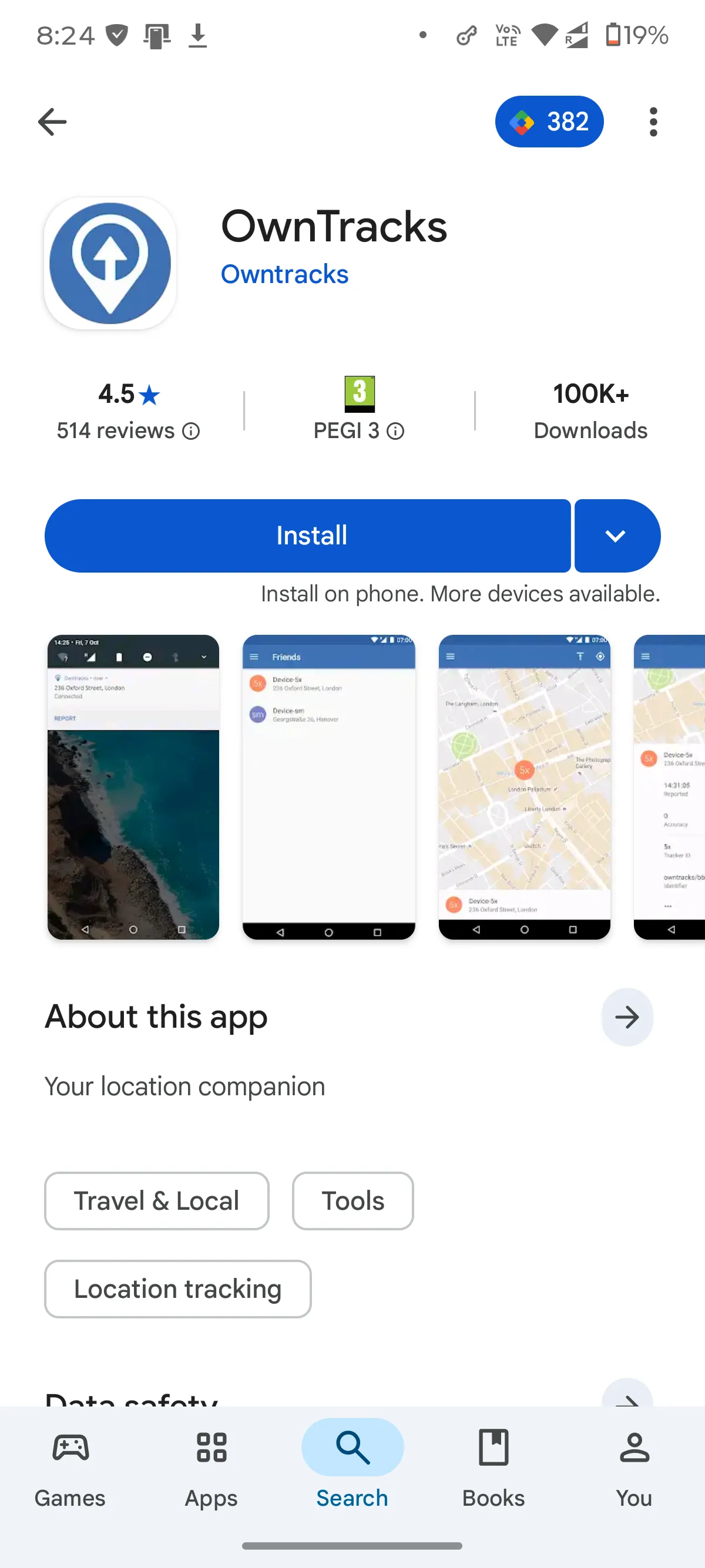
- Open the Google Play Store
- Search for: OwnTracks
- Tap Install
Step 2. Open the App for the First Time
When you open OwnTracks for the first time, the app will guide you through a few setup steps. Whenever the app asks you to grant permission, tap the “REQUEST PERMISSION” button and allow the requested access. The screenshots below were taken on an Android device. The process on iPhones is very similar.
- On the first screen, tap Next
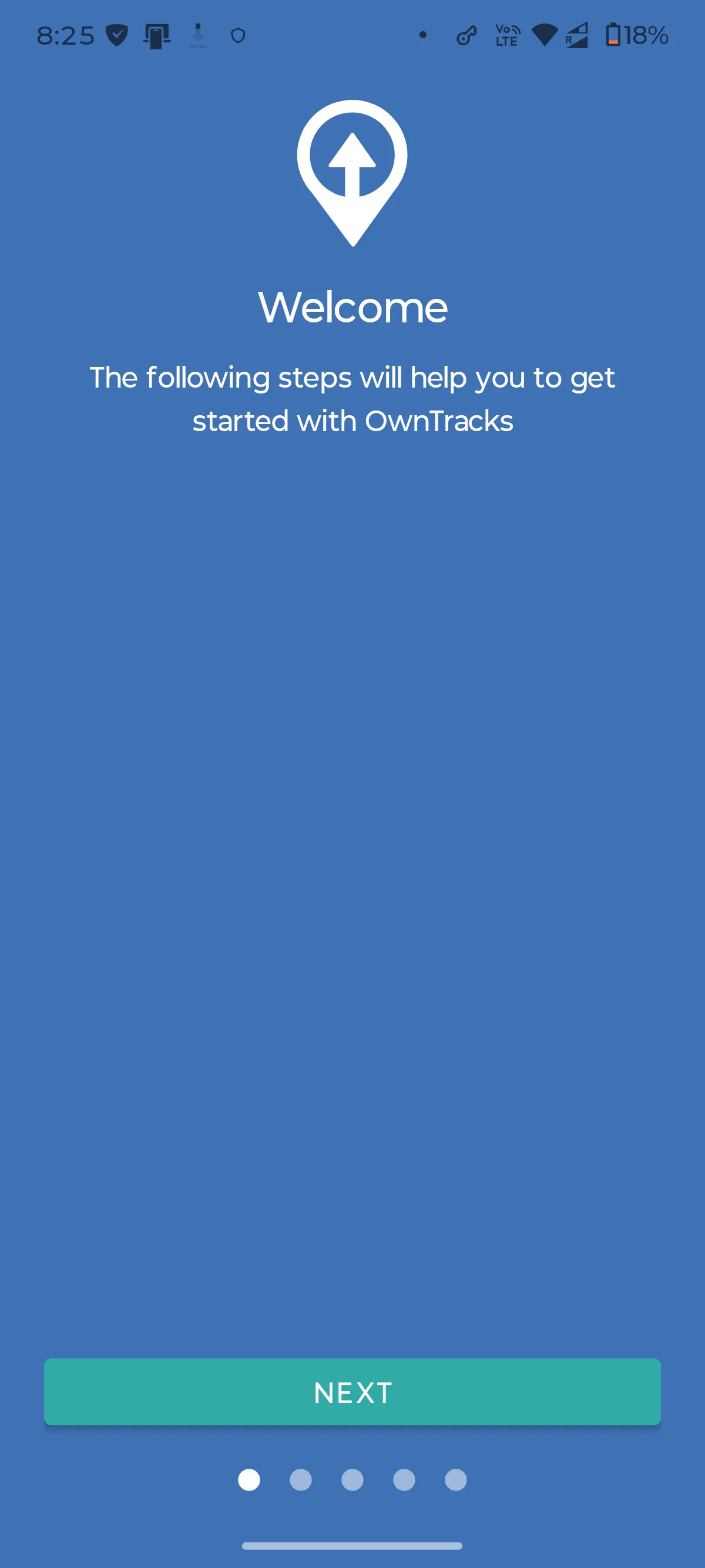
- On the second screen, tap Next again
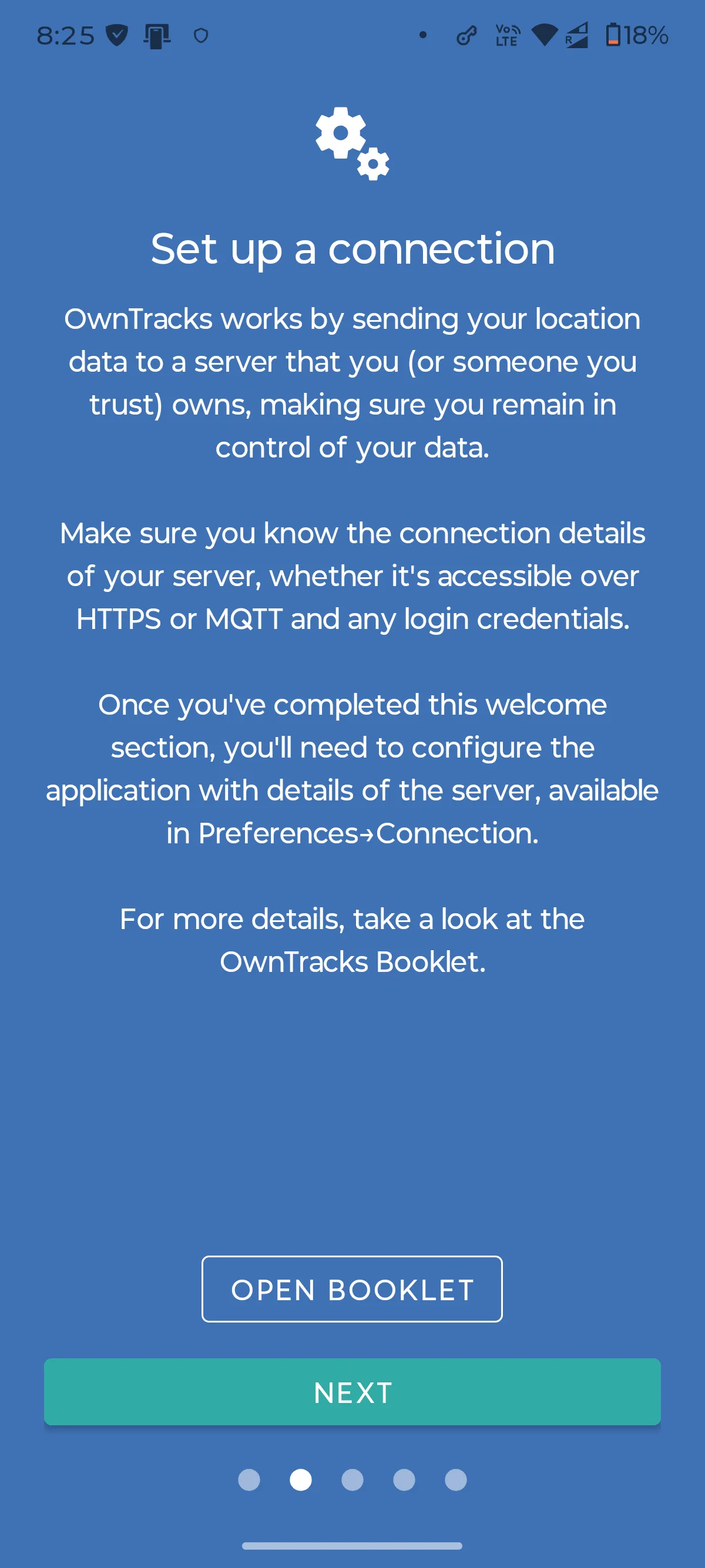
- Now, tap the "REQUEST PERMISSION" button
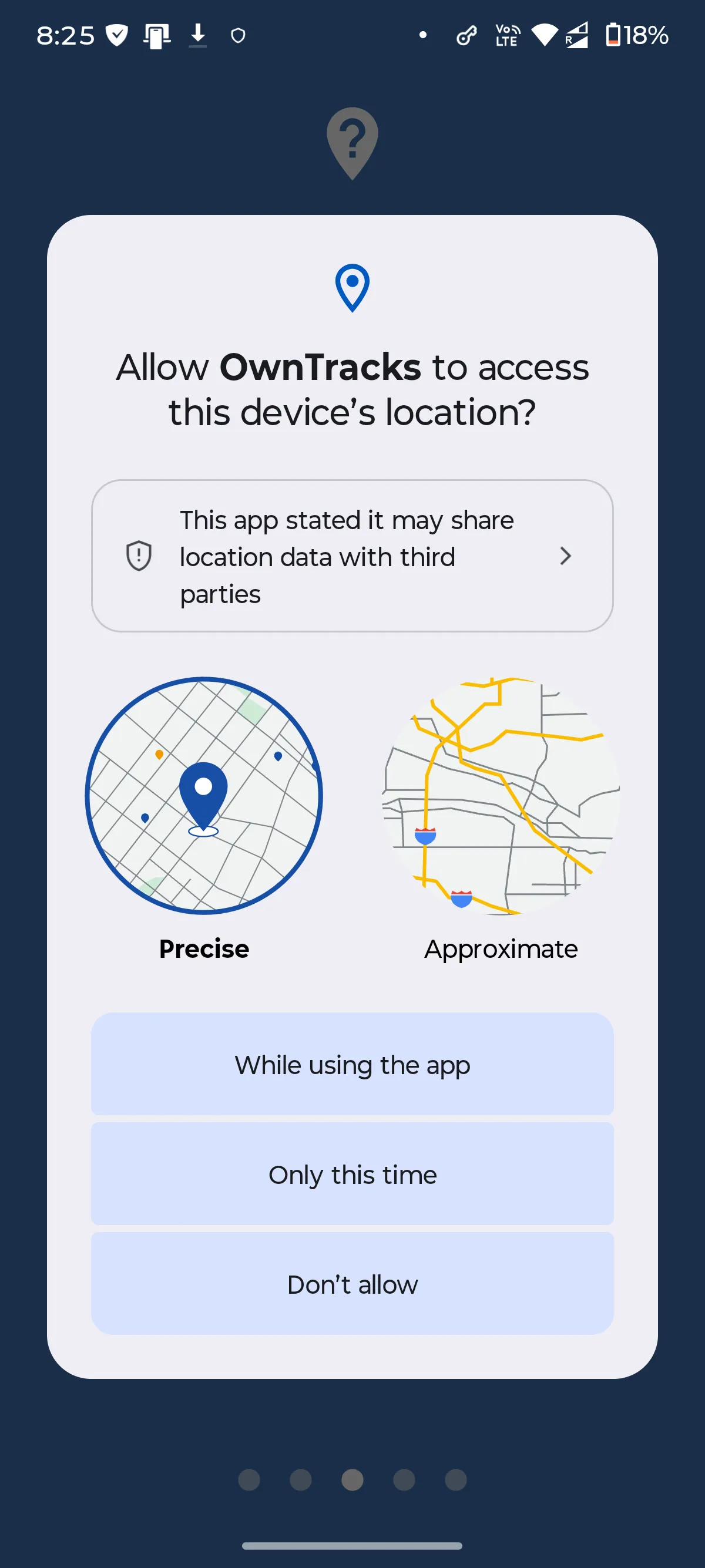
- Allow the app to access your location by selecting “While using the app”
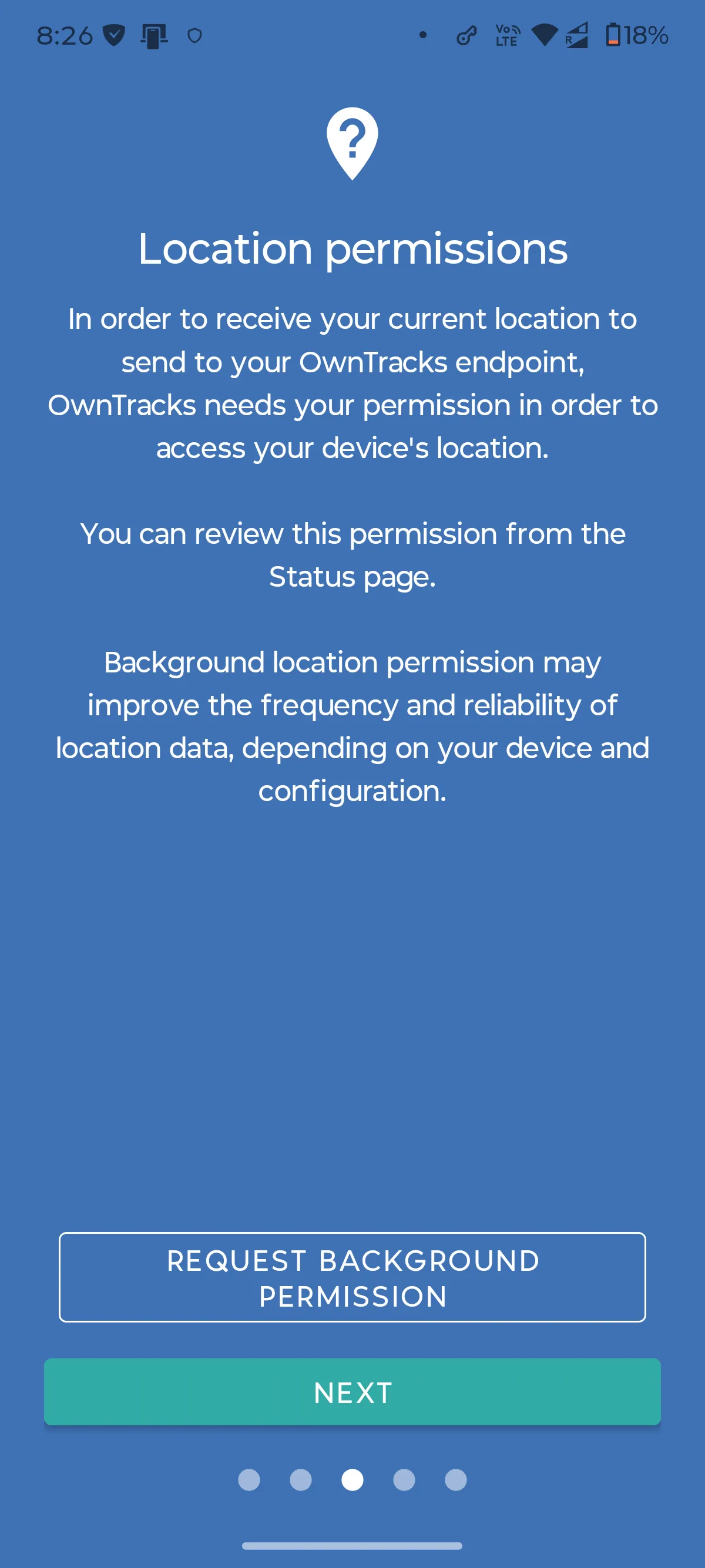
- Next, tap "REQUEST BACKGROUND PERMISSION"
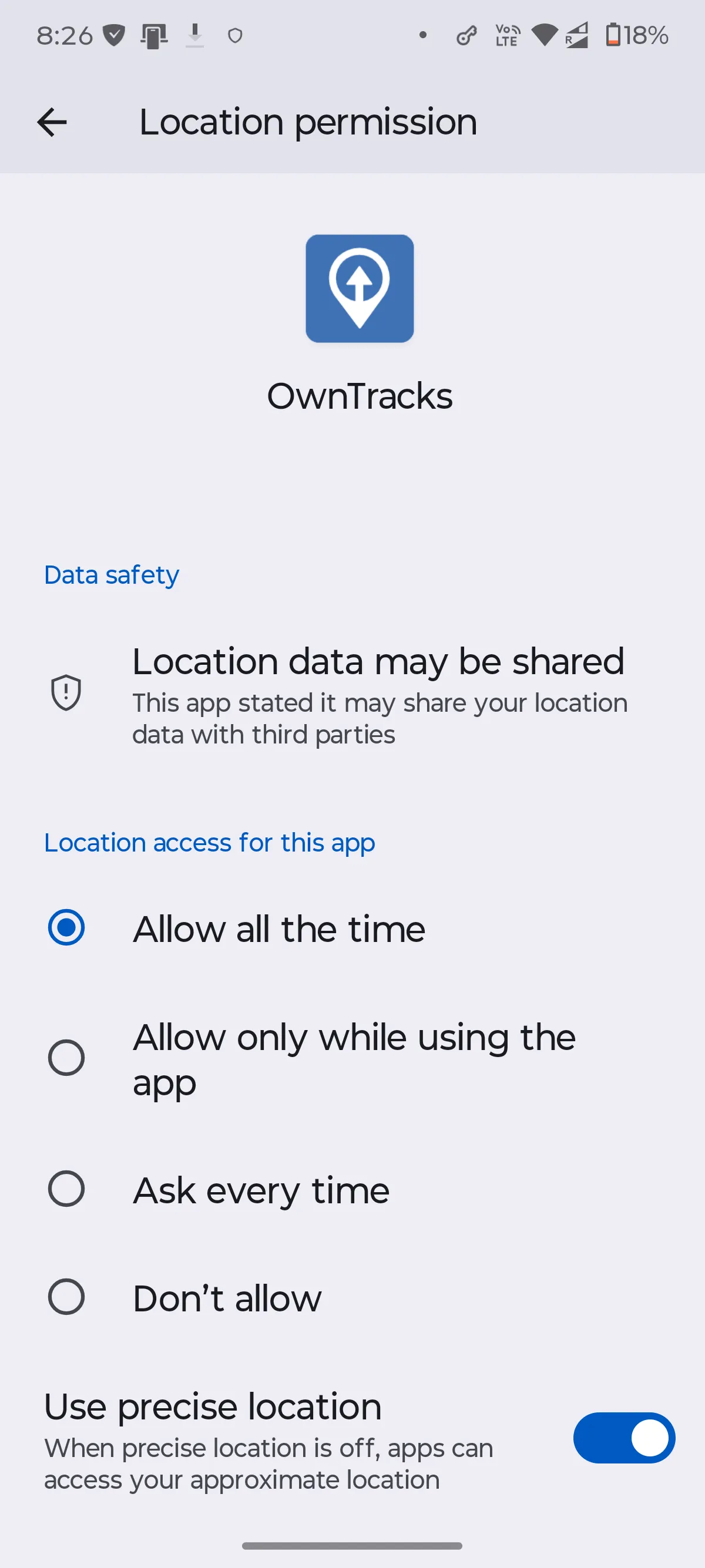
- Choose "Allow all the time"
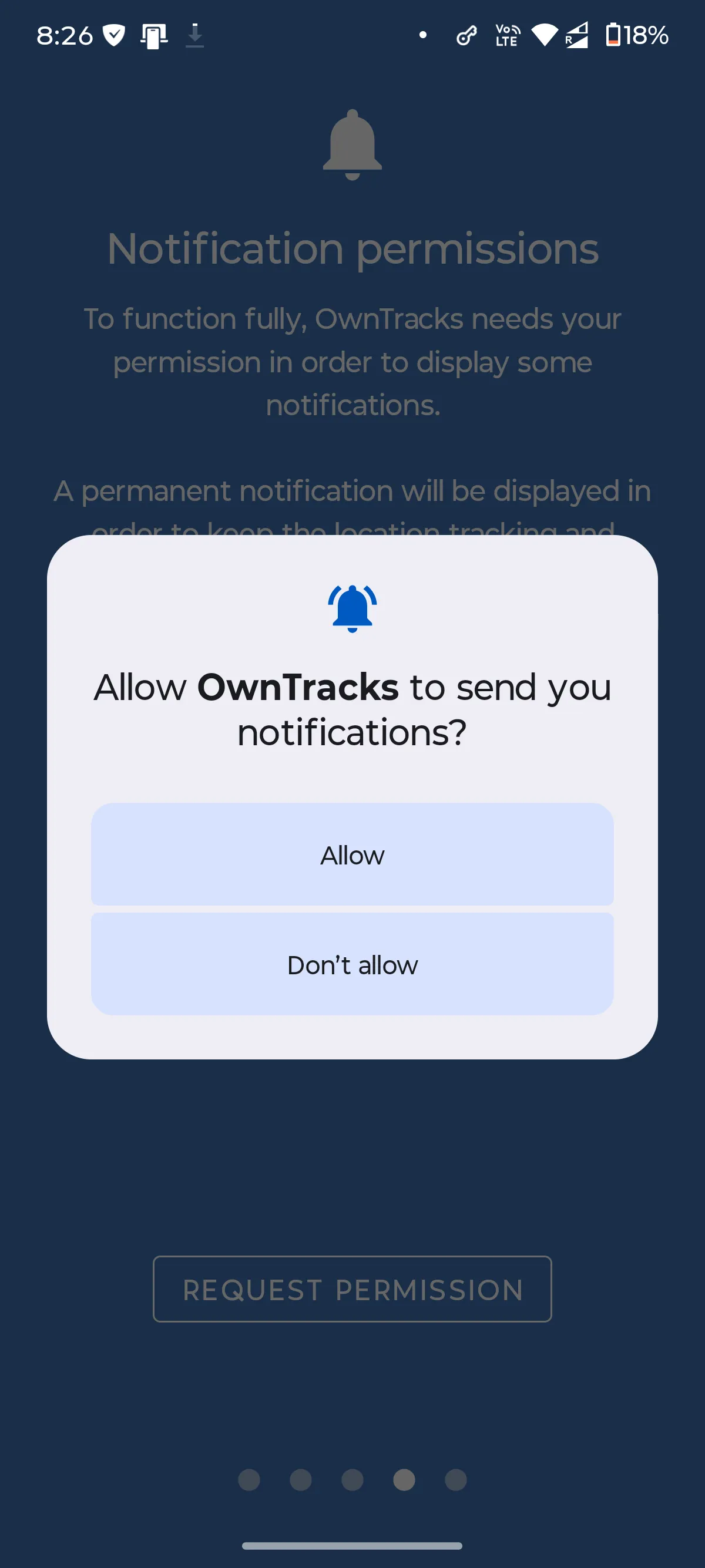
- In the next step, tap "REQUEST PERMISSION" and choose "Allow" to enable notifications
- Tap “Done” to complete the basic configuration
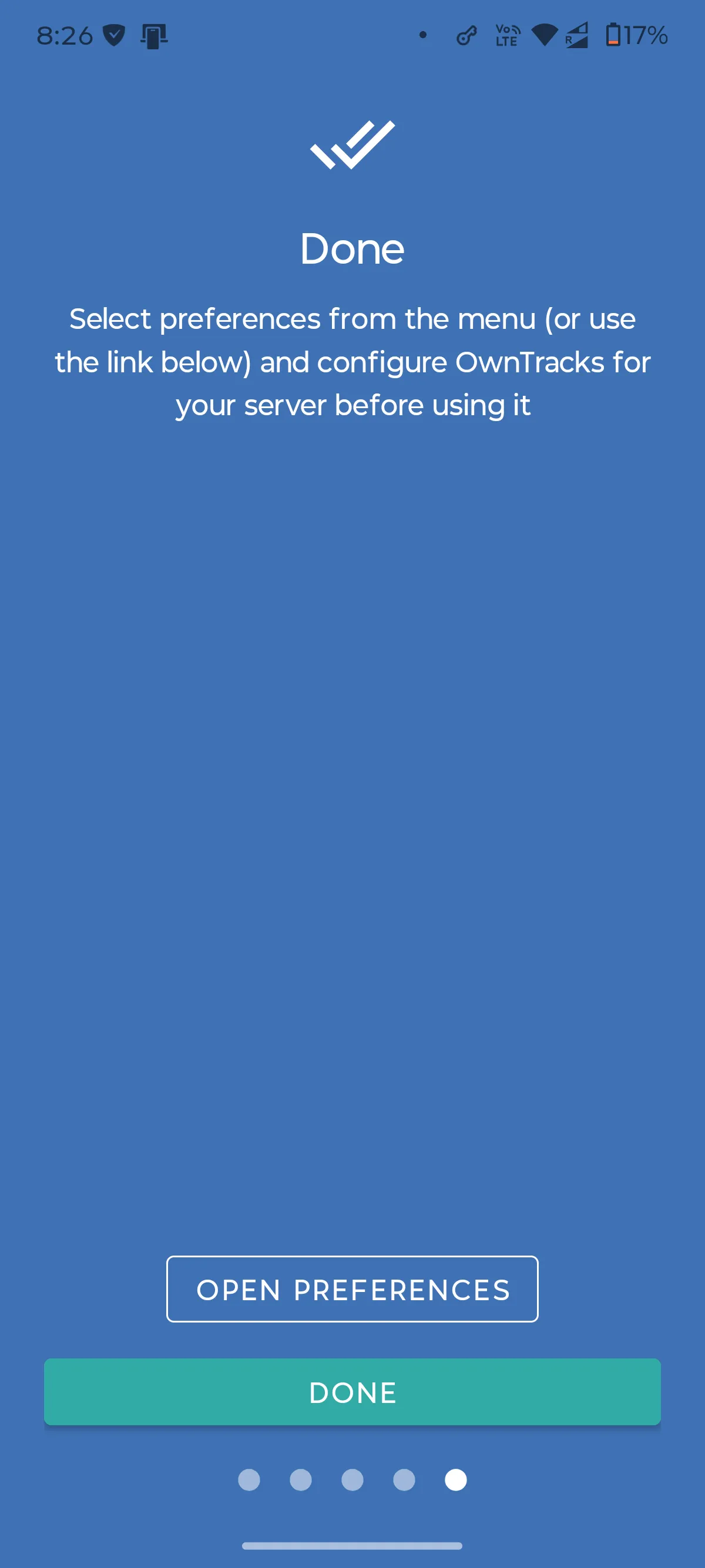
Step 3. Configure the webhook URL in the app preferences
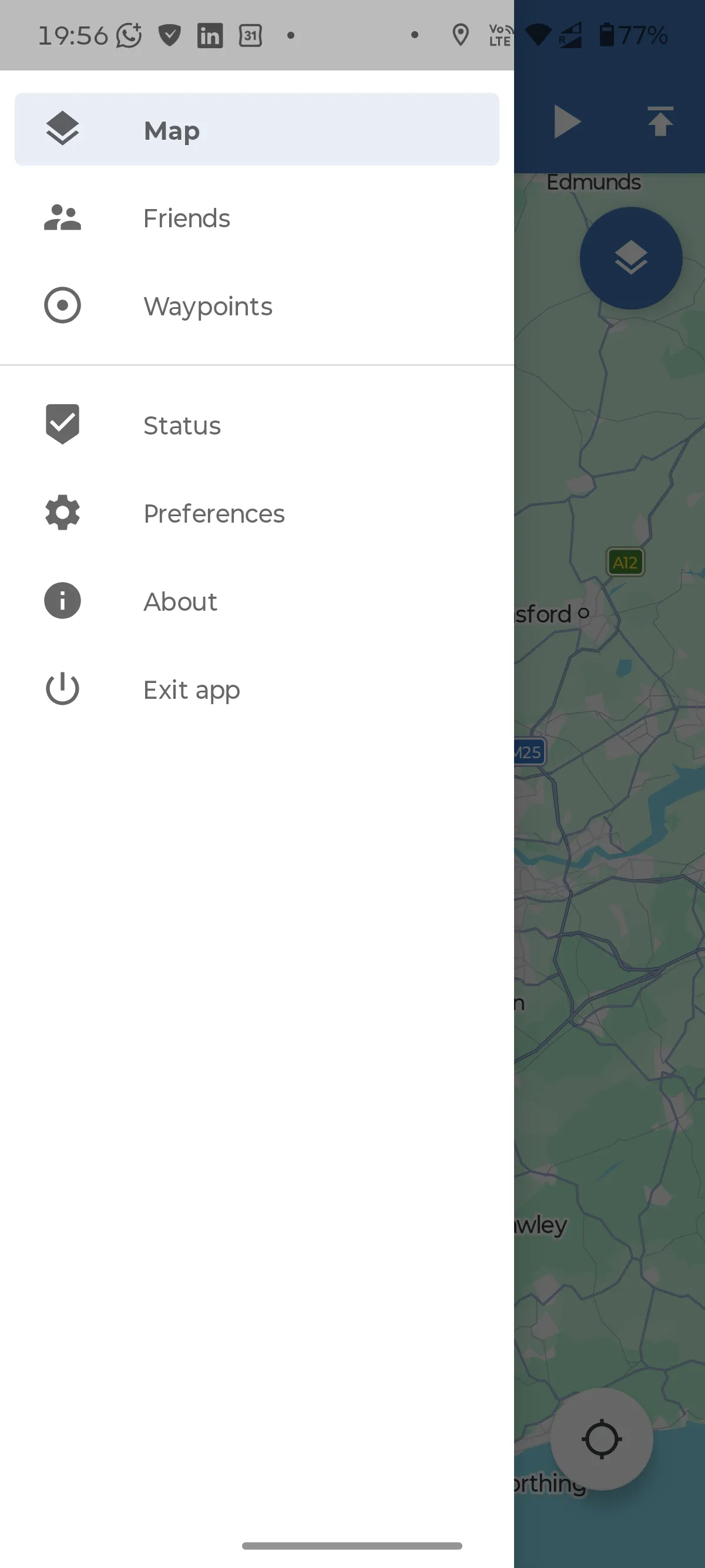
- Tap the main menu button ☰ (it should be in the top-left corner) and choose Preferences
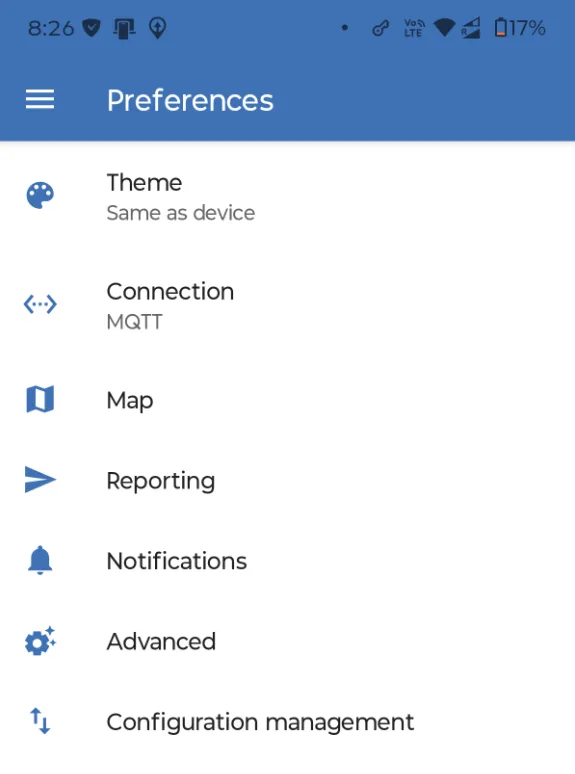
- Now, tap the "Connection" row
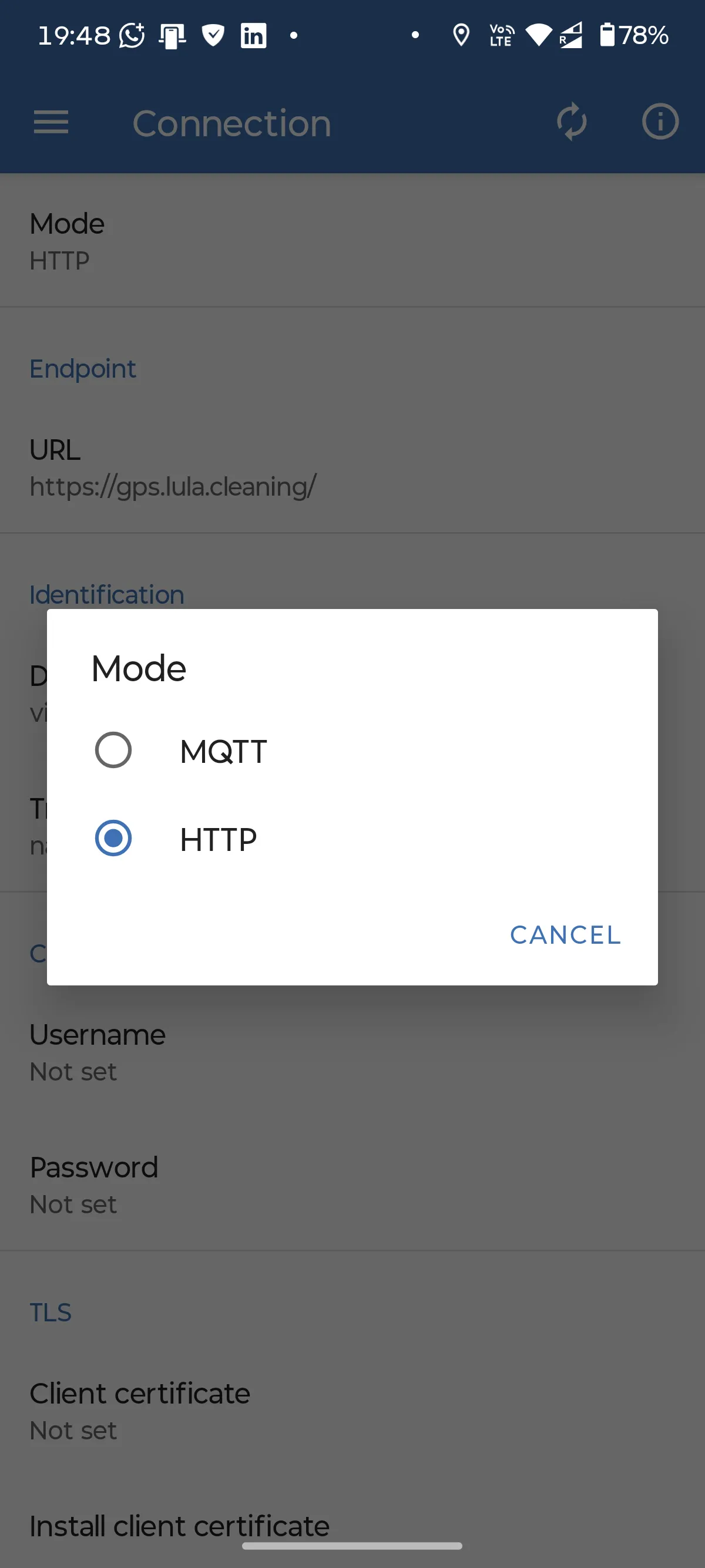
- Then choose "Mode" and select "HTTP"
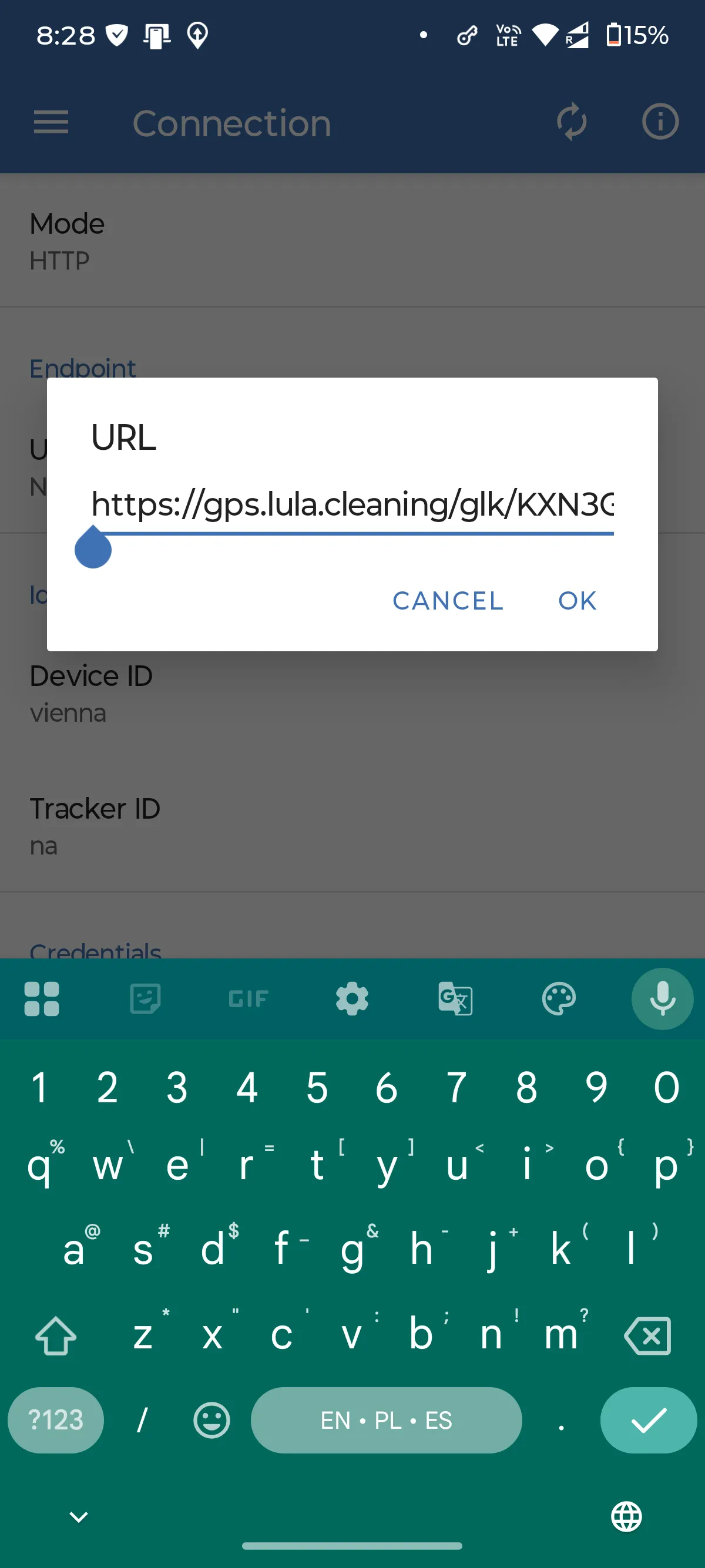
- In the "Endpoint" section, tap "URL", paste the URL copied from the Lula.Cleaning app, and tap "OK". The URL uses a secure HTTPS connection. OwnTracks can now send your location data to Lula.Cleaning.
Step 4. Optionally, adjust the location Monitoring Mode
- Tap the main menu button ☰ and select Map
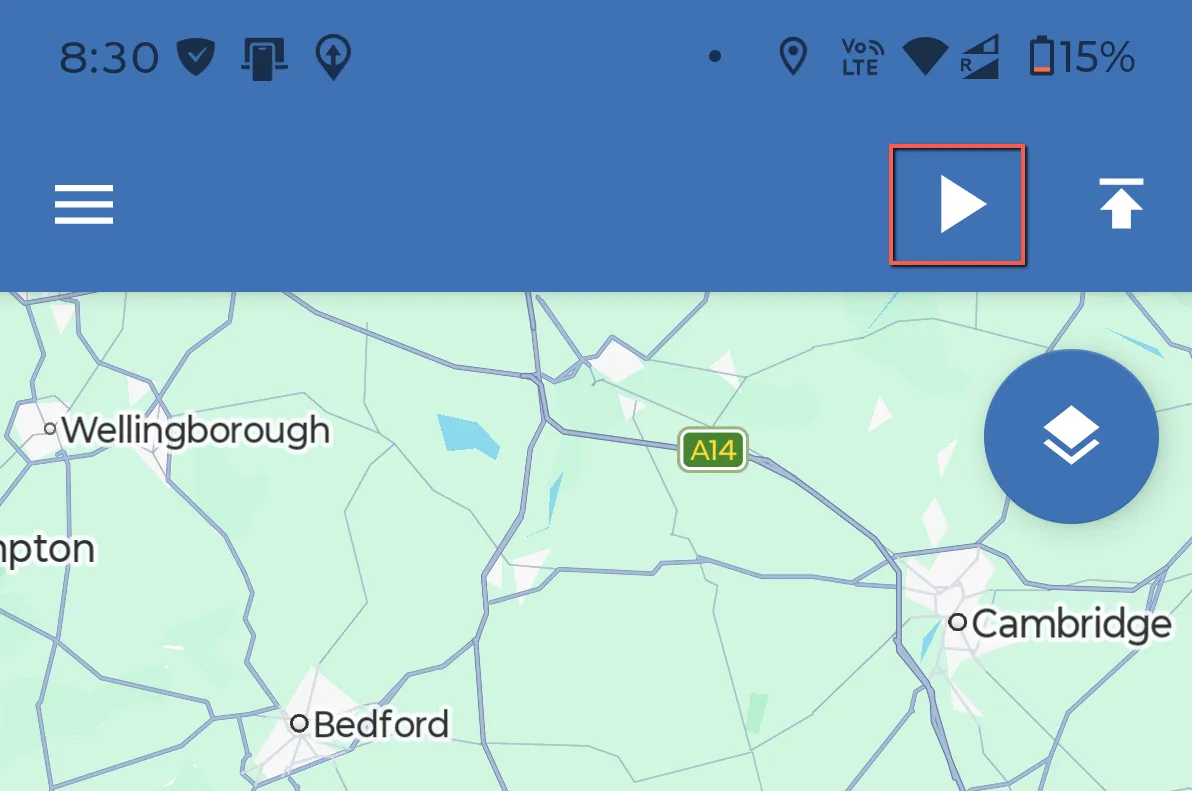
- Now, tap the button shown here
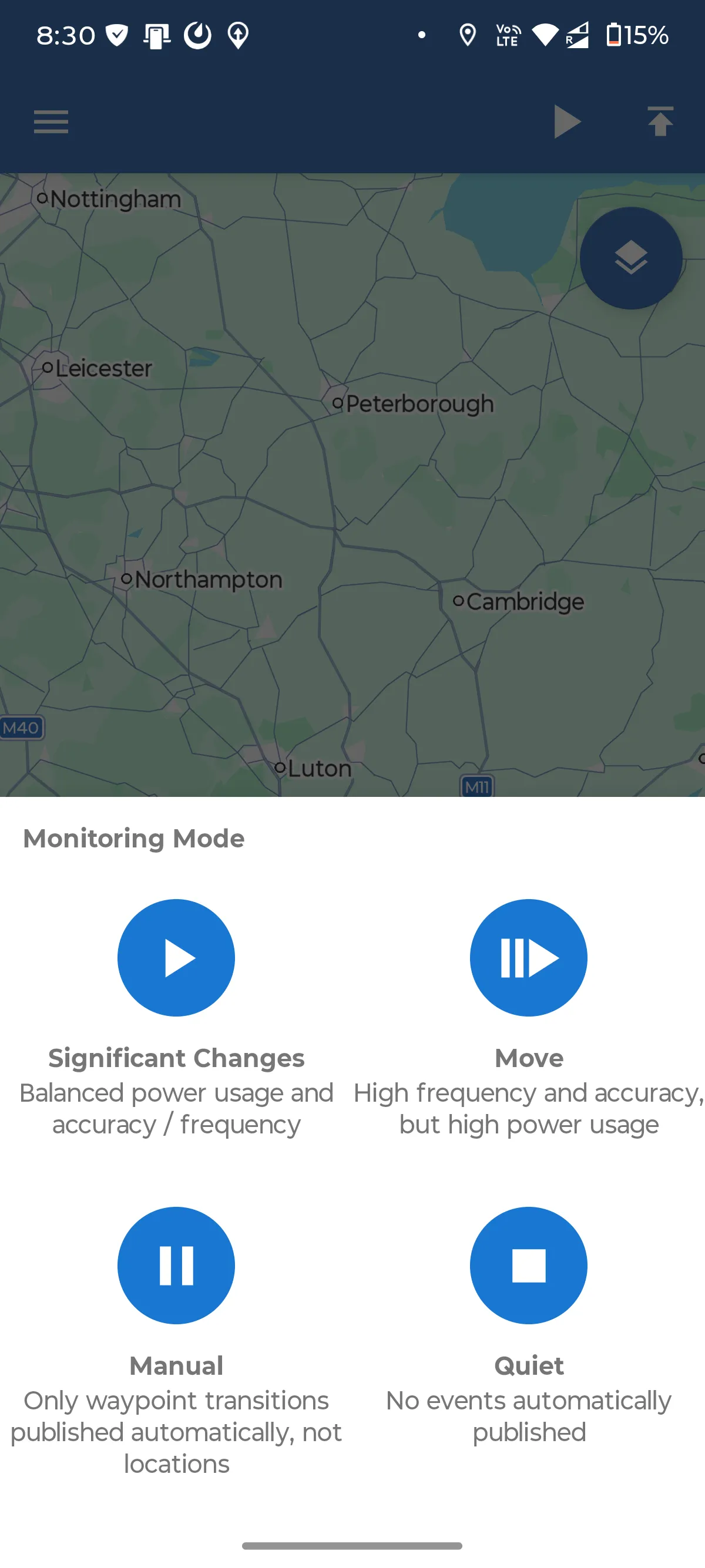
- You can choose the location monitoring mode. The recommended option is the default "Significant Changes" mode, but if higher precision is needed, you may choose the "Move" option.
Step 5. Check that the app can run in the background
The screenshots and option names may differ slightly depending on the iOS or Android version.
- iOS:
- Settings → Privacy / Privacy & Security → Location Services → OwnTracks → Always
- Also enable Background App Refresh
- Android:
- Settings → Apps → OwnTracks → Permissions → Location → Allow all the time
- Settings → Apps → OwnTracks → App battery usage → Allow background usage
Troubleshooting
If locations are not visible in Lula.Cleaning, check that the URL was pasted correctly, OwnTracks is set to HTTP mode, location permission is set to ‘Always’ / ‘Allow all the time’, and battery optimization is not blocking the app.
Additionally, you can tap the main menu button ☰ and select Status. This page may already show useful information. To check the detailed logs, choose View Logs.
If OwnTracks shows an error saying that it cannot resolve the gps.lula.cleaning host, close the OwnTracks app completely and open it again. After restarting the app, all queued GPS locations should be sent automatically. We have noticed that, in some cases, OwnTracks may temporarily get stuck and restarting the app usually solves the issue.